Convert JPG to PDF Under 250KB
Make a PDF under 250 KB from your JPG images, straight from your browser.
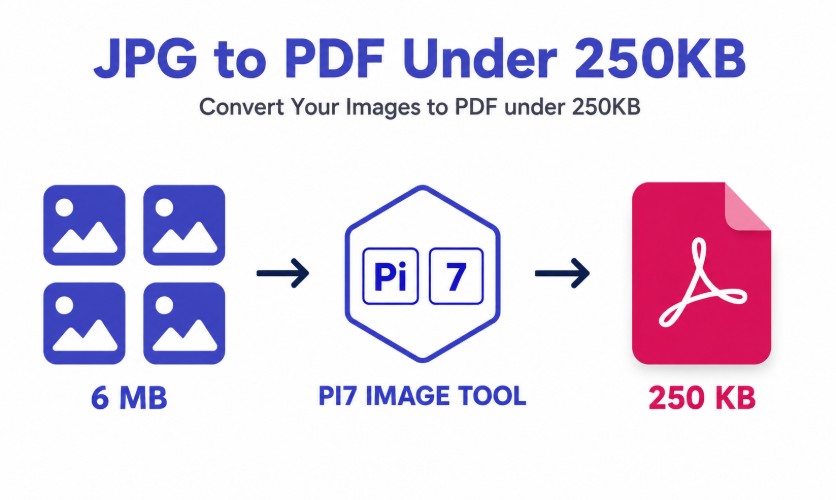
This page builds a PDF under 250 KB right in your browser. It sits between the 200 KB and 300 KB tools. Reach for it when 200 KB cuts a scan too thin, or a portal will not take anything past 250. Select your images, press Convert To PDF, and the file lands at 250 KB or under.
Convert JPG to PDF Under 250 KB in Four Steps
- Pick Your Images: Press Select Images or drag your photos into the box.
- Arrange the Pages: Drag to reorder. A + circle inserts an image anywhere.
- Convert: Press Convert To PDF. The 250 KB target is already set.
- Save: Rename the PDF in the popup, then download it.
The Middle Ground Between 200 KB and 300 KB
Most portals round to a clean number, and 250 KB is one of the numbers you will see. It gives roughly a quarter more room than 200 KB. That is often enough for one extra page, or a sharper scan of a busy document. It also stays well clear of a strict 300 KB cap, in case a portal checks that limit closely.
If you already tried JPG to PDF under 200KB and the result came out too soft, this is the next step up. Need more room still? JPG to PDF under 300KB is right above it.
How Many Pages Fit in a 250 KB PDF?
The budget is shared across every page you add, so fewer pages means each one gets more of it. As a rough guide:
| Pages | Quality at 250 KB |
|---|---|
| 1 to 2 pages | Sharp, close to the original |
| 3 to 4 pages | Clear text and detail |
| 5 to 7 pages | Readable, softer photos |
| 8 or more | Small text may blur, try a larger limit |
Plain pages like forms and signatures barely touch the budget, so those extra pages mostly come out of the photo-heavy ones.
Nothing Leaves Your Device at Any Size
Every page of the PDF is built inside your own browser, not on a server. Your photos are never uploaded, so there is nothing to wait on and nothing stored anywhere once you close the tab. A simple page like a receipt or a signature keeps its original bytes untouched, since it never needed compressing in the first place. Only the heavier photos get squeezed, and only by as much as the 250 KB budget actually requires.
If Your Upload Gets Rejected
Sometimes 250 KB genuinely will not fit everything you added, especially with several detailed photos in one file. The tool tells you when that happens. It hands you the smallest PDF it could still make look right, instead of a broken or oversized file. From there you can drop a page, brighten a dark photo, or move up to the 300 KB tool.
FAQ
Why would a form ask for exactly 250 KB?
It is a common round number for online forms. It is wide enough for a decent scan, but small enough to stay quick on a slow connection.
What happens if 250 KB is not reachable?
You get the closest, smallest PDF the tool can produce, with a note that the target could not be hit. Nothing fails silently.
Can I switch to 200 KB or 300 KB later?
Yes, your images stay selected in the browser tab. Open the other size page and upload the same photos again.
Need a size this family does not cover? Use the image to PDF converter and type your own KB or MB limit.