AI Photo Enhancer - Increase Image Quality Online
Pi7 Image Tool - Turn blurry photos into crystal-clear memories
This AI photo enhancer improves image quality in one click. Upload a photo, press Enhance, and download the sharper result. It fixes soft focus, grain, and dull colors automatically. There are no sliders to learn and nothing to install. One click covers most photos.
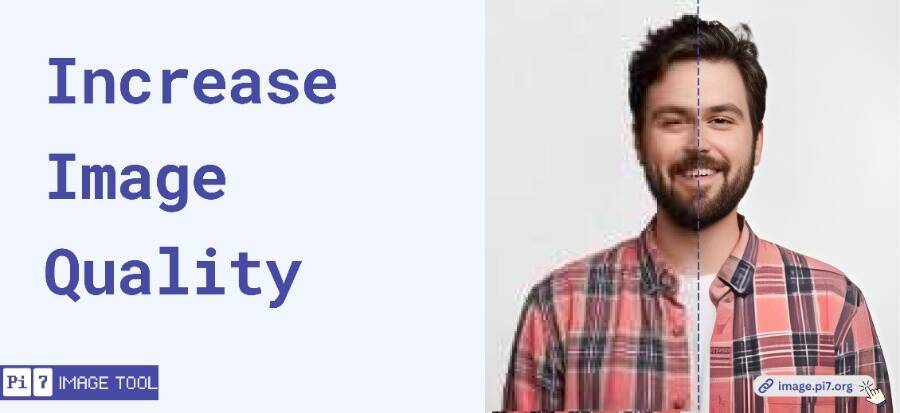
How to Increase Image Quality in 3 Steps
- Upload: Select the photo you want to improve.
- Enhance: Press the button and let the AI work for a few seconds.
- Compare and Download: Check the result against the original, then save it.
What the AI Photo Enhancer Fixes
We tuned this tool on everyday phone photos, not studio shots. It targets real problems. Slightly blurry faces come back sharp. Grain from low light gets cleaned without smearing detail. Compressed WhatsApp photos regain their edges. Old scanned pictures lose their haze. Colors get a gentle lift, not a fake filter look. Screenshots and text photos become easier to read.
When Better Quality Matters Most
Enhance before you print, frame, or post anything that matters. Profile photos gain the most: faces are what the AI is best at. Old family photos are the second big use. A phone scan of a printed picture enhances surprisingly well. For heavy blur, our unblur image tool goes deeper. To also enlarge the photo, use super resolution.
Small Habits That Improve Results
A few habits make every enhancement better. Feed the tool your original photo, not a forwarded copy. Every WhatsApp hop compresses the image and removes detail the AI could use. Enhance once: running a photo through twice adds nothing. For printing, enhance first and resize after. If a photo is both blurry and tiny, enhance it here first. Then enlarge the result with super resolution for the final size.
What to Expect, Photo by Photo
Results depend on what you feed in. Slightly soft portraits improve the most, and faces come back convincing. Old scans gain contrast and lose haze, though heavy damage stays visible. Screenshots and text photos sharpen well. Very dark or badly shaken photos improve less: some detail is simply gone. If one pass disappoints, retake or rescan the source. A better input beats any amount of AI. Daylight photos enhance better than night shots, every single time.
Your Photos Are Deleted After Enhancement
Your photos are yours. We keep nothing. The AI needs a server, so your photo travels over an encrypted connection. It is enhanced, sent back, and wiped within 20 minutes. There is no gallery, no training set, and no human review.
Enhance First, Then Compress for Forms
Portals want small files, but enhance before you shrink. Run the photo through the enhancer at full size first. Then compress the result with reduce image size in KB. Doing it backwards enhances compression artifacts instead of your face. The right order gives you a sharp photo that still fits the limit.
FAQ
Does enhancing change how people look?
No. The AI sharpens what is already there. It does not invent new faces or apply beauty filters.
What is the maximum photo size?
Photos up to 25 MB work. Larger photos just take a few seconds longer.
Is the enhancer really free?
Yes. No signup, no watermark, no daily cap.