Image to Text Converter - Extract Text from Any Photo
Add a photo, crop what you need, and get editable text back in seconds - works in 100+ languages.
Drag the box to keep only the text you want, or leave it as it is to read the whole image.
Pi7's image to text tool reads a photo or image and gives you back text you can copy or edit. Upload a photo from your phone, paste a screenshot, or drop in a scan - all three work the same way. It runs right in your browser, so nothing you add here gets uploaded anywhere.
Already have a JPG? The JPG to text converter is the same tool, set up for that one format. Working from a PNG or a screenshot instead, try PNG to text.
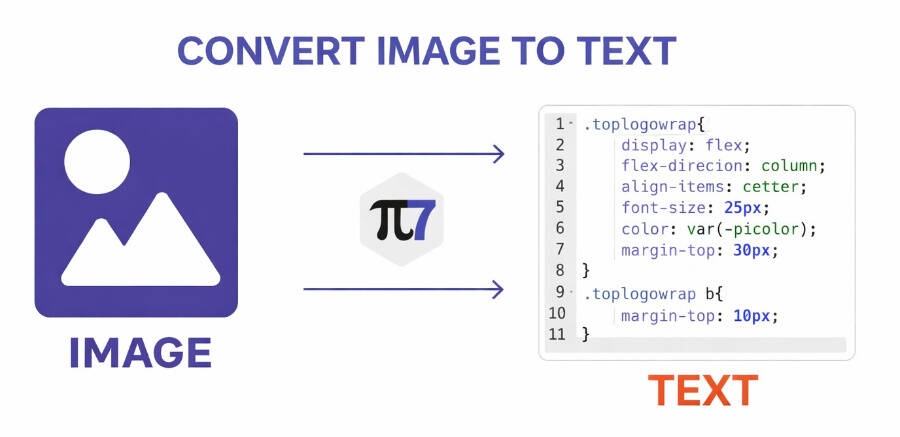
Add a Photo, Crop It, Get Your Text
Here is the whole process, four steps from photo to text:
- Add your image: Upload a photo, paste a screenshot with Ctrl+V, or, on a phone, tap "Take a photo" to use the camera.
- Crop and pick a language: Drag the crop box around just the text you need, or leave it as the whole image. Pick up to 3 languages if the text is not in English.
- Tap Extract Text: The tool reads your image and shows the result in a few seconds.
- Copy, fix, or download: Edit the text box if anything needs a fix, then copy it, or save it as a .txt or .docx file.
Why the Result Is Accurate
Most basic tools read an image once and hand you whatever comes out, typos and all. This one reads your image twice - once as you uploaded it, and once after a quick clean-up that straightens a tilted photo, evens out patchy lighting, and removes ruled lines from receipts and forms so they do not get mistaken for text. It keeps whichever of the two results it is more sure of.
Numbers get extra care, since a phone number, a total, or a GST or account number is exactly the kind of thing you cannot afford to get wrong. Any number the tool was not fully sure about gets a second, focused read on its own. Anything it is still unsure of shows up lightly highlighted in the result box, so you know exactly which words to check instead of trusting the whole page blindly.
Over 100 Languages, Including Hindi
The reading engine understands more than 100 languages, from English and Hindi to scripts most tools skip. Pick up to 3 languages at once before you tap Extract Text - useful when one photo mixes two languages, like an Indian receipt with Hindi and English on the same line. The list is searchable, so you can find yours in a couple of taps instead of scrolling through all 100.
Nothing Is Uploaded
Your photo and the text it turns into stay on your device the whole time - nothing is uploaded, ever. The only network activity is a one-time download of the reading engine, about 4MB, plus the data for any languages you pick, and both are cached after the first time so later visits start instantly. Close the tab and everything you read is gone with it.
Tips for a Cleaner Result
Crop tight around just the text if your photo has a busy background, like a receipt lying on a patterned table or a poster full of graphics. Less clutter in the crop means fewer mistakes in the result. If a photo came out sideways, use Rotate left or right before you crop, since the whole image turns, not just the crop box.
Leave Keep layout switched on for a form or receipt, so fields that sit side by side on the original stay lined up in the result instead of running together. Turn it off for a plain paragraph, like a page from a book, so the words reflow into normal sentences. Download as .docx if you want a file you can keep editing, or .txt for a quick copy-paste.
FAQ
Is it free, and is there a watermark?
Yes, it is free to use, with no signup and no watermark on the result.
Does it read handwriting?
It is built and tuned for printed and typed text. Handwriting recognition is much less reliable, so do not count on it to read a handwritten note or letter accurately.
Does it work on a phone?
Yes. Upload, crop, and camera capture all work in a phone browser, and the "Take a photo" button uses your camera directly.
Which languages are supported?
Over 100, including English and Hindi. Pick up to 3 at once before you tap Extract Text if your image mixes more than one language.
Need to go the other way, from typed text to something that looks handwritten? The handwriting generator does that instead.