LaTeX to Image Converter - PNG, SVG, Transparent
Type or paste LaTeX, watch it render, and download a sharp PNG, SVG or JPG for Word, PowerPoint, Google Docs or the web. Free, no signup, nothing is uploaded.
Leave a blank line between equations to put them on separate lines.
Loading the maths engine...
Ctrl+Enter downloads. Everything is drawn on your device.
Type LaTeX above and this page turns it into an image in your browser: a PNG with a transparent background by default, or an SVG or JPG. The preview redraws as you type, and you pick the size, the colour and the margin. Download the file, or click Copy image and paste it straight into Word, PowerPoint, Google Docs, Notion, a chat or a web page. Nothing is uploaded.
You need this whenever an app cannot read LaTeX but can show a picture. A slide, a Word report, a Google Doc, a forum post, a WhatsApp message to a student, a thumbnail for a video: all of them take a PNG. An SVG stays sharp at any size on a website. The hard part with most converters is a jagged, grey-edged image on a white box. Here the PNG is transparent and drawn at up to 8 times the screen size, so it sits on any background and stays crisp when printed.
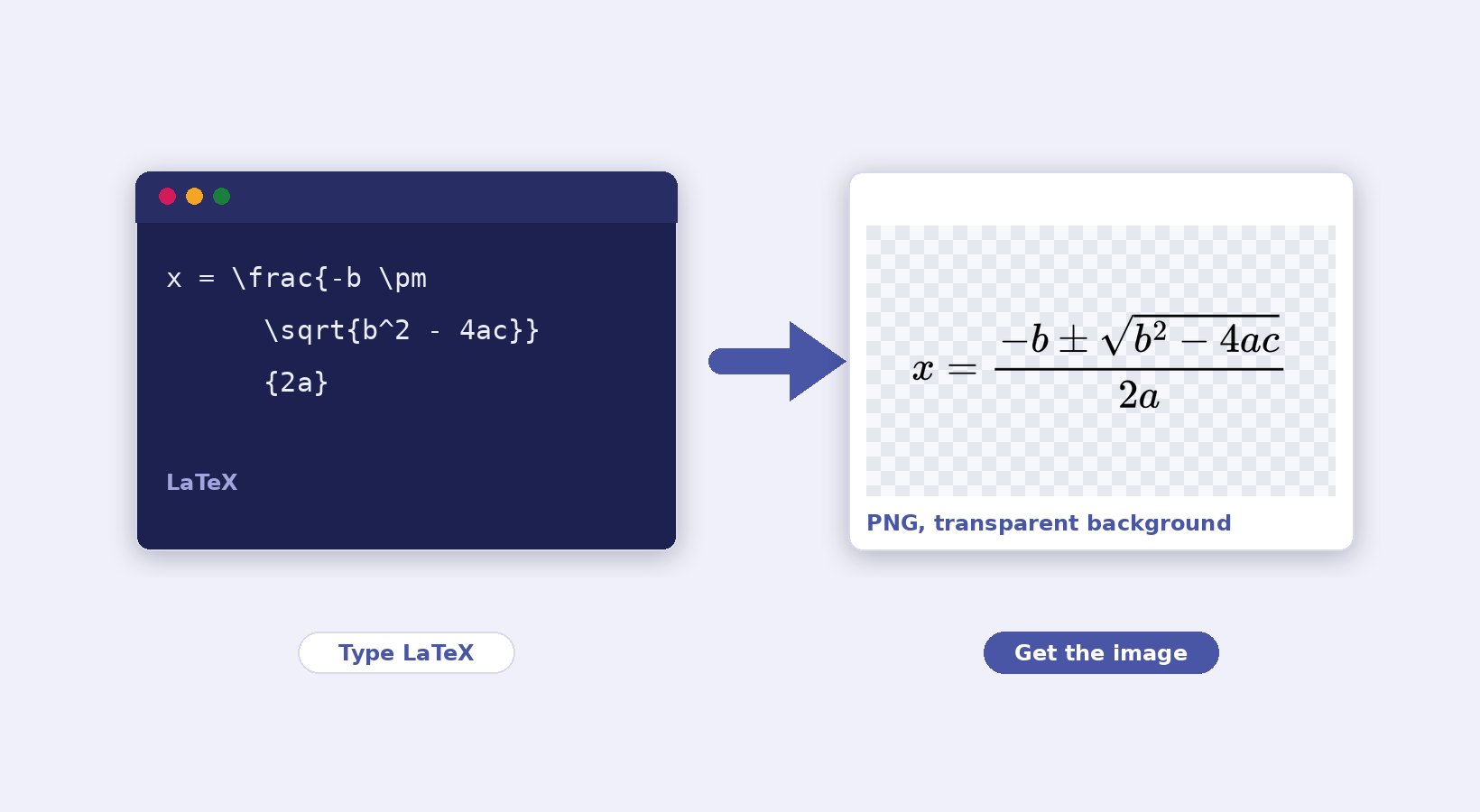
How to convert LaTeX to an image
- Type or paste your LaTeX in the box. Only the maths is needed, without $ signs or a document around it. The buttons above the box insert fractions, roots, sums, matrices, Greek letters and symbols, and Examples loads a finished equation to start from.
- Check the preview. It redraws a moment after you stop typing. A mistake shows as a short message under the box, such as a missing brace or an unknown command.
- Pick the format, size and colours. PNG with a transparent background at 4x is right for Word, PowerPoint and Docs. White text on a transparent background is for dark slides. SVG is for websites.
- Click Download, or Copy image to put the PNG on your clipboard and paste it straight into the document you are writing.
PNG, SVG or JPG: which one to pick
| Format | Pick it for | Good to know |
|---|---|---|
| PNG | Word, PowerPoint, Google Docs, Notion, chats, video thumbnails | Transparent background, so it sits on any colour. Use 4x for documents, 8x for print. |
| SVG | Websites, blogs, apps, anything that will be resized | Vector: stays sharp at every size and the file is tiny. The glyphs are inside the file, so it needs no fonts. |
| JPG | Places that refuse PNG, email signatures, some forum uploads | No transparency: the background becomes white or the colour you chose. |
The size setting multiplies the on-screen size. 1x is what you see in the preview, about the height of body text. 2x is sharp on phone and laptop screens. 4x, the default, gives roughly 300 dots per inch when pasted at normal size in a document. 8x is for posters and print shops. The size line above the preview shows the exact pixel size before you download.
Equations for Word, PowerPoint and Google Docs
The fastest route is Copy image: it copies the PNG at the chosen size and you paste it with Ctrl+V where the cursor is. Word and PowerPoint paste it as a picture you can resize and align like any other. Google Docs and Slides paste it inline, and Notion, Teams, Slack and WhatsApp on a computer accept it too. If a paste comes out blank, your browser blocked the clipboard: use Download and insert the file instead.
Two settings make pasted equations look like part of the text. Keep Display style on for a standalone equation on its own line, which gives big integral and sum signs with their limits above and below. Switch it off for an inline formula inside a sentence, which draws it at text size with the limits beside the sign. And match the colour: black for a white page, white for a dark slide, or pick the exact shade with the colour box.
What LaTeX works here
Everything in maths mode that the MathJax engine knows works here, which is what most people mean by LaTeX maths. That covers fractions, roots, powers, sums, integrals, limits and Greek letters, plus the AMS environments such as aligned, cases, pmatrix and bmatrix. You also get \text{} for words, \mathbb, \mathcal, \boldsymbol, \color, \cancel, chemistry with \ce{} from mhchem, and quantum brackets with \bra and \ket. You can define your own macros with \newcommand at the top of the box. Type the maths alone, without $...$ or \[...\] around it.
What does not work is a whole document: \documentclass, \section, paragraphs of text, TikZ pictures and packages that only a full TeX install can run. Those need a real LaTeX compiler. If you have several equations, put a blank line between them and they are stacked on separate lines in one image. Tick Save each equation as its own image to get one file each, in a ZIP.
Nothing is uploaded: the equation is drawn on your device
The maths engine runs inside your browser tab, so your LaTeX never travels to a server. The page loads the engine once, then works offline, with no limit on how many equations you make and no account or watermark. The link button does not upload anything either. It puts the LaTeX itself into the page address, so a saved or shared link opens this page with the equation filled in. Close the tab and nothing remains.
Need the equation inside a picture rather than on its own? Download the PNG and place it with the add text to image tool, or make a sharp icon of a symbol with the favicon generator. Scanned formulas go the other way with JPG to text.
Frequently Asked Questions
Is the PNG background really transparent?
Yes, as long as Background is set to Transparent, which is the default. The preview shows the checkerboard behind the equation to prove it. JPG cannot hold transparency, so a JPG gets a white background, or the colour you chose.
How do I make white equations for a dark slide?
Click the white dot under Text colour, keep the background transparent, and download the PNG. In the preview the equation is drawn on the checkerboard so you can still see it. Any other colour works the same way through the colour box.
Why does it say a command is not known?
The message names the command, for example \frac typed as \farc. Fix the spelling, or check that the command is maths-mode LaTeX. Document commands such as \section and \begin{figure} are not maths and will not draw.
Can I convert many equations at once?
Yes. Put a blank line between them and tick Save each equation as its own image. The preview shows all of them, and Download gives a ZIP with equation-1, equation-2 and so on in the format you picked. Leave the box unticked to keep them together in one image, one equation per line.
What size should I use for printing?
8x. A line of maths comes out around 2,000 pixels wide, which prints sharp at 300 dots per inch across a page. For a document on screen, 4x is plenty and keeps the file small. SVG has no size at all: it is redrawn sharp wherever it is placed.