Remove Text from Image
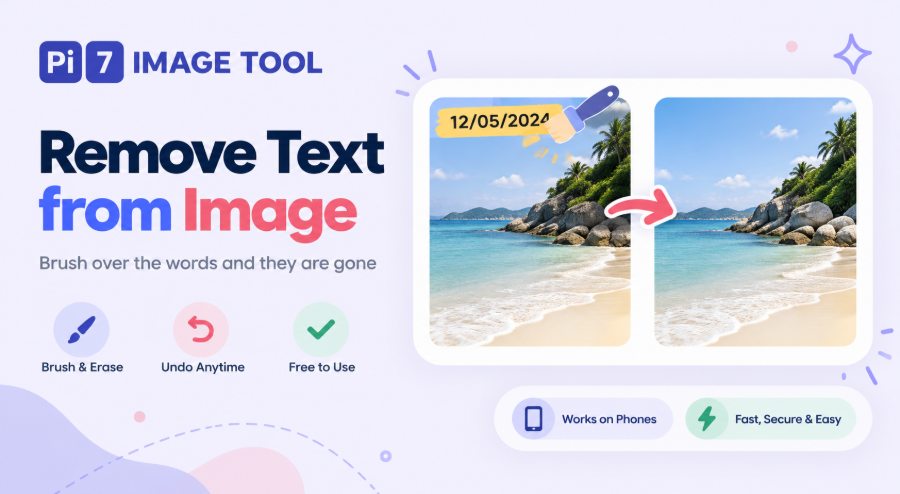
Brush over the words, lift the brush, and the spot fills itself in. Also clears dates, stamps and logos from photos you own.
Paint over the text, then lift the brush. The spot fills in by itself.
This tool lets you remove text from an image in a few seconds, free. Brush over the words, lift the brush, and the marked spot is filled in to match what is around it. The same brush deletes a date stamp, a caption, a sticker or a logo from a photo you own. You can undo any pass, compare with the original, and download the clean picture.
How to Remove Text from a Picture
- Select Photo: Press Select Photo or drag a picture onto the page. JPG, PNG, WebP and iPhone HEIC files all work.
- Paint over the text: Drag the yellow brush across the words. Use the Brush size slider for big or small lettering, and turn on Zoom & pan for tiny text.
- Lift the brush: About two seconds after you let go, the painted area is filled in. Paint another spot if some text is left.
- Check it: Undo takes back the last pass and Redo brings it again. Preview original slides the untouched photo over the result so you can compare.
- Download: Press Download and save the clean picture.
What the Text Remover Can and Cannot Do
The fill is made by an AI model on our server, not by smearing nearby pixels. So it does not need a plain background. It continues brick, grass, water, fabric, stripes and wood grain across the gap. A date in a corner, a caption over a landscape or a name across a product shot comes out clean on the first pass. Most fills take one to four seconds.
What it cannot do is guess detail that was hidden under the text. If the words sit over other writing, a face or a tiny pattern, the fill will look like a soft smudge. There is no way to know what was there. In those cases use a smaller brush, cover only the letters, and accept that a little of the detail is lost. The tool edits a copy that is at most 1000 pixels wide or 1400 pixels tall. A very large photo comes back a little smaller than the original.
Tips for a Clean Erase
- Paint a little past the edge of each letter. Thin gaps around the text leave faint outlines behind.
- Do a long line of text in two or three pieces rather than one wide stroke. Smaller fills blend better.
- If a pass looks smudged, press Undo, pick a bigger brush, and cover the whole word in one go.
- Switch Zoom & pan on to get close to small text, then switch it off again to paint.
Need the opposite job? The add text to image tool puts new words on a photo. To hide something instead of erasing it, the blur part of an image tool is quicker, and the background remover cuts the subject out entirely.
What Happens to Your Photo
This tool sends your photo to our server to do the fill, so it does not stay only in your browser. The picture travels over a secure HTTPS connection and is used for nothing except the spots you mark. It is deleted from our server automatically 20 minutes after processing. Only you receive the finished picture, when you press Download. Please use it on photos you own or have permission to edit.
FAQ
Is it free, and is there a watermark?
Yes, it is free with no signup, and nothing is added to your picture.
Can it remove a watermark?
It can clear a mark you added to your own photo, such as a name or a date. It is not meant for stock photos or other pictures you do not have the rights to.
Why is there a faint shadow where the text was?
The brush did not cover the whole letter. Press Undo, paint a little wider, and let it fill again.
Does it work on my phone?
Yes. Paint with your finger, and use Zoom & pan to get close to small text.
Does the photo lose quality?
Only the painted area changes. The rest of the picture is kept as it is, apart from very large photos, which are scaled to 1000 by 1400 pixels at most.