Change Aspect Ratio of Image - Free Online Tool
Pick a preset. Drag to crop. Download. Instagram, TikTok, YouTube ratios in one click.
Pi7 Change Aspect Ratio tool turns your image into any shape in one click. Pick a preset for Instagram, TikTok, YouTube, or 14 other platforms. Or type your own W:H. See the whole image with padding by default. Or drag to crop to just the part you want. Download as JPG, PNG, or WebP. Everything runs in your browser. No signup. No upload. No watermark.
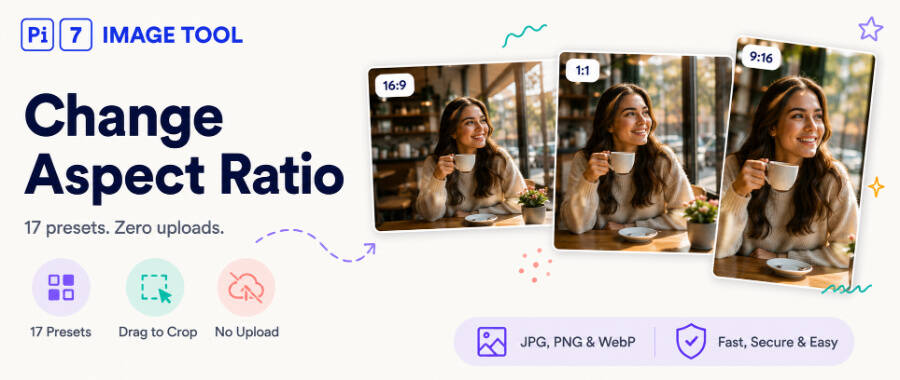
How to Change the Aspect Ratio of an Image in 3 Steps
- Upload your image. Drag your photo onto the upload area or click Select Image. JPG, PNG, WebP, and GIF all work.
- Pick a ratio. Choose from 17 preset shapes. Or type your own W:H in the Custom option.
- Download. Click Download. The file matches the live preview exactly.
By default the whole image fits inside the target ratio with background padding. Click Adjust crop in the sidebar if you want to zoom in on part of the image instead.
When Should You Change Aspect Ratio?
Your photo's aspect ratio is the shape of its frame. Most cameras take 4:3 or 3:2 photos. Most social platforms want a different shape. That mismatch is why you need to change ratios.
Common cases:
- A landscape photo needs to become a square for an Instagram post
- A phone photo needs to be 16:9 for a YouTube thumbnail
- A wide screenshot needs 9:16 for a Story or a Reel
- A rectangle photo needs to fit a 2:3 Pinterest pin
- A group photo needs to be 1.91:1 for a Facebook or LinkedIn post
The tool handles all these in one place. No math, no calculator, no guessing pixel widths. If you also want to add rounded corners after the ratio change, use our round corners tool.
Fit vs Crop: Which Mode Should You Pick?
The tool has two ways to reshape your image.
- Fit (default) - The whole image stays visible. Blank space around the edges gets filled with a background colour of your choice. Nothing gets removed.
- Crop - You drag a rectangle over the source. Only what fits inside the rectangle survives. Everything outside is cut off.
Pick Fit when the whole image matters. Great for logos, group photos, or any image where losing the edges would hurt.
Pick Crop when you want to focus on part of the image. Great for headshots taken from a wider photo. Also useful when the subject sits off-centre and the rest is background.
The default is Fit. Click Adjust crop in the sidebar to switch to Crop mode.
17 Preset Ratios for Every Platform
The tool ships with shapes for every major social platform and photo format.
Social media (11 presets):
- Instagram Post (1:1)
- Instagram Portrait (4:5)
- Instagram Story and Reel (9:16)
- TikTok (9:16)
- YouTube Thumbnail (16:9)
- YouTube Shorts (9:16)
- Twitter Post (16:9)
- LinkedIn Post (1.91:1)
- Pinterest Pin (2:3)
- Facebook Post (1.91:1)
- WhatsApp Status (9:16)
Photo and print (6 presets):
- Square (1:1)
- Portrait 4:5
- Photo 3:2
- Photo 4:3
- Widescreen 16:9
- Ultrawide 21:9
If none of these match your target, pick Custom W:H and type any two whole numbers between 1 and 99. The crop rectangle locks to your ratio right away.
Will Changing Aspect Ratio Lose Image Quality?
The output size follows your source resolution. A 4000 by 3000 photo cropped to 1:1 gives you a 3000 by 3000 image at full quality. A smaller source gives a smaller output. Nothing is scaled up.
The tool uses high-quality resampling when it renders. Edges stay sharp and colours stay accurate. JPG output is saved at quality 92, which keeps files small without visible loss. WebP goes at quality 90 and is usually 30 percent smaller than the same JPG.
Pick PNG for logos, icons, or graphics with sharp lines and flat colour. Pick JPG for photos when file size matters. Pick WebP for the smallest file at good quality. If your source starts as JPG and you need PNG, use our JPEG to PNG converter first for the cleanest result. To resize the output to exact pixel dimensions, follow up with the pixel image resizer.
Your Photo Never Leaves Your Browser
Everything the tool does runs on your device. Your photo is loaded into a canvas element. Every change happens in JavaScript on your computer. Nothing is uploaded to Pi7 servers. Nothing is saved. Nothing is tracked.
Close the tab and the image is gone from memory. Refresh the page to start fresh. No signup. No email. No cookies watching what you cropped. If your photo is personal, private, or work-confidential, this matters.
The tool also strips EXIF metadata from the output. Camera model, GPS coordinates, timestamps, colour profile - all gone. Your output has zero embedded data beyond the pixels.
Frequently Asked Questions
Can I change aspect ratio without cropping?
Yes. The default Fit mode keeps the entire image and adds background padding to reach the target ratio. Nothing gets cut off. Pick a background colour from the Background dropdown, or leave it transparent.
Does the tool lower my image quality?
Only slightly. Cropping keeps every pixel in the crop area at the original resolution. Fit mode uses high-quality resampling so edges stay sharp. The output matches your source resolution.
Can I use custom aspect ratios beyond the presets?
Yes. Pick Custom W:H from the dropdown and type any two numbers between 1 and 99. The crop and preview lock to your ratio right away.