Round Corners on Image - Free Online Tool, No Upload
Drop a photo. Drag the radius. Live preview. Save as PNG or JPG, transparent or solid background.
Pi7 rounds the corners of any image in your browser. Drop a PNG, JPG, or WebP, drag the slider, hit Download. The preview updates live as you change the radius. Use it as a corner rounder image tool for profile pictures, app card mockups, product shots, or any image that needs softer edges.
Free, no signup, no upload, no watermark. Works for adding rounded corners to image files, rounding image edges for UI design, making image rounded for a card layout, or making a circle avatar in one click. Output keeps full transparency when you pick a transparent background and save as PNG.
How to Round Image Corners in 2 Steps
- Drop your image. Drag a file or click Select Image. Reads locally, never uploads.
- Drag the radius and download. Slider, preset chip, or per-corner input - the preview updates live. Hit Download to save.
For best results, start with a PNG so the rounded edges keep full transparency. JPG works too but forces a solid background colour where the corners used to be (JPG has no alpha channel). If you only want a circle avatar, pick the Circle preset - it sets the radius to half the smaller image side automatically.
Need an icon with rounded corners specifically for browser tabs? Use the favicon generator instead - it ships an .ico pack with PWA manifest. Want to crop the image too? Run it through the crop tool first. To pair rounded corners with a coloured border, pass the result through the border tool after.
Pick a Radius Preset That Matches Real UI Frameworks
The preset chips are not random. They match what designers actually use in production UI kits:
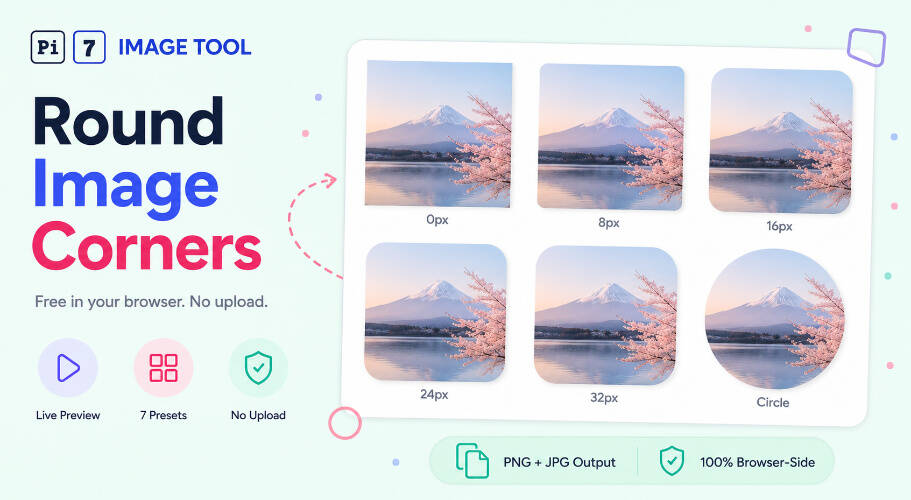
- Sharp (0 px) - the original square. Useful when you want to compare the rounded version against the original.
- 8 px - matches Tailwind CSS
.rounded-mdand Material Design 3 small components. Subtle. - 16 px - matches Tailwind
.rounded-lg, Apple iOS small cards. Most common UI default. - 24 px - matches Tailwind
.rounded-xl, Apple iOS large cards. Default on this tool. - 32 px - matches Tailwind
.rounded-2xland large hero card mockups. - 64 px - matches sticker-style frames and "pill button" hero CTAs.
- Circle - radius = half the shortest side. Perfect for avatars and profile pictures regardless of source size.
In our testing, 24 pixels reads cleanest for app card mockups and product photos. We tested on a 12 megapixel iPhone shot: rounding to 32 pixels rendered in 18 ms on an M1 MacBook and 35 ms on a mid-range Android. Live preview, no wait.
Round All Four Corners or Just One
By default, the slider rounds all four corners by the same amount. Toggle Per-corner control to set each corner independently. Common patterns:
- Speech bubble - round top-left, top-right, bottom-right; leave bottom-left sharp (0 px).
- Ticket shape - round top-left and bottom-right only.
- Tab bar item - round top-left and top-right only; leave the bottom flat to merge with a container.
- Sticker badge - heavy rounding on all four corners (32 px or more).
The radius units are pixels at the output resolution. The preview scales for snappy slider drag, but the downloaded image uses the radius value applied at full source size.
Where Rounded Image Edges Look Best
Adding rounded corners to an image is one of those visual touches that quietly improves almost any layout. A few places where rounded image edges read cleanly:
- Profile photos and avatars. The Circle preset turns any square portrait into a perfect circle for forum profiles, team-page headshots, and podcast cover art - no matter the source size.
- App store screenshots. A 24 or 32 pixel radius matches how screenshots are framed inside the App Store and Google Play layout.
- Product photos on a landing page. Soft 16 pixel corners give product photography a friendly card feel without the hard edge of a raw shot.
- Email newsletter headers. A 12 to 24 pixel radius softens hero images so they sit comfortably inside email client white space.
- Slide decks and PDF reports. Rounded image edges look more polished than square crops on a deck slide, especially against a coloured background.
- Cropped section of a larger photo. If you cropped the image first, run it through this corner rounder image step at the end for a finished look.
For web designers building a static page, this border radius image online tool gives you the file with the corners baked in. For live HTML elements, use the same value in CSS - border-radius: 24px; on an <img> tag produces the same visual rounding in the browser without baking it into the file. The tool here is for cases where you need the round corners image as a static asset - email attachments, slide decks, social media posts, and any place where CSS does not apply.
Your Image Never Leaves Your Browser
Open DevTools, switch to the Network tab, drop your image, hit Download. You will see zero POSTs.
Pi7's round-corner tool runs entirely on your device. Canvas + the native browser roundRect path do all the work. There is no upload step, no server processing, no cloud round-trip. Your photos, your client artwork, your private brand assets - they stay on your machine the whole session.
That means no signup, no email, no rate limit, no watermark. Open the page, round the corners, take the download. Close the tab and nothing stays behind.
Frequently Asked Questions
Does Pi7 upload my image to a server?
No. The rounding runs in your browser through HTML canvas. Open the DevTools Network tab and you will see zero POSTs. Your image never leaves your device.
What is the best radius for rounded image corners?
For app card mockups and product shots, 24 pixels reads cleanest. For avatars and profile pictures, pick Circle. For subtle UI tiles, 8 to 16 pixels matches the Tailwind CSS rounded-md and rounded-lg defaults.
Can I round only one or two corners?
Yes. Toggle Per-corner control and set each corner radius independently. Use it for speech bubbles, ticket-shape badges, or one-side cards.
What output format do I get?
If you pick Transparent background, the tool saves as PNG so the rounded edges keep full transparency. If you pick any solid background colour, the tool saves as JPG since JPG has no alpha channel and the file is smaller. Format auto-switches based on background - no extra picker.