PNG to ICO Converter - Free Online Icon Maker
Upload a PNG. Pick sizes. Download a Windows .ico file. Runs in your browser.
Pi7 PNG to ICO Converter turns any image into a Windows .ico file in seconds. Upload your PNG, JPG, or WebP. Pick which sizes you need from 16 up to 256 pixels. Choose one combined multi-size .ico or a ZIP of separate files. Everything happens in your browser. Nothing is uploaded. No signup. Every ounce of metadata is stripped from the output.
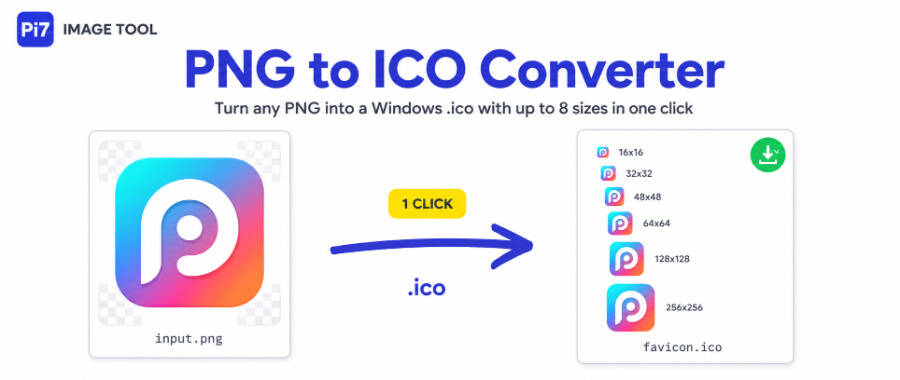
How to Convert PNG to ICO in 4 Steps
- Upload your image. Drop it onto the upload area or click to pick a file. JPG and WebP also work.
- Pick your sizes. Check the boxes for the icon sizes you need. 16, 32, and 48 are pre-selected as the classic favicon trio.
- Choose combine mode. Turn on "Combine into one multi-size .ico" if you want a single file that holds every size.
- Download. Click the download button. You get either one .ico file or a ZIP with separate .ico files inside.
Choose Between a Multi-Size ICO or Separate Files
The tool gives you two output styles. Pick the one that matches how you plan to use the icons.
- Single .ico with every size inside. Best for a website favicon.ico or a Windows app icon. The operating system picks the right size at each display point automatically.
- ZIP with one .ico per size. Best if you need each size for a different purpose - one for a tray icon, another for a shortcut, another for a taskbar pin.
If you pick only one size, you always get a single .ico file. The combine toggle only matters when you check two or more sizes.
Which Icon Sizes to Include
Each Windows icon size shows up in a specific place. Pick the ones that match how the icon will be used.
- 16 x 16 - browser tab favicon and Windows system tray
- 24 x 24 - Windows toolbars and Explorer detail view
- 32 x 32 - Windows shortcut icons, bookmark bar, taskbar pins
- 48 x 48 - Windows Explorer default icon view
- 64 x 64 - Windows medium icons view
- 96 x 96 - high-DPI Windows displays and Android home screen
- 128 x 128 - Windows large icons view
- 256 x 256 - Windows Vista and later extra large icons and high-DPI monitors
For a website favicon, the classic trio is 16, 32, and 48. For a modern Windows application icon, add 24, 96, and 256. For a full multi-purpose kit, use all eight.
What Makes a Good Source Image
The tool works with any PNG, JPG, or WebP. But the source affects how well your icon looks at small sizes.
- Square images work best. Non-square images get stretched to fit each icon size.
- Transparent PNG is ideal. The alpha channel is preserved so your icon blends with any background.
- Start with a high-resolution source. 512 x 512 pixels or larger gives the cleanest down-scaling.
- Simple designs read better at 16 x 16. Complex art turns into a smudge.
- Bold shapes and thick lines survive down-scaling. Thin lines disappear.
If you need a full favicon pack with Apple touch icons, Android icons, and a web manifest, use the Favicon Generator instead. For simple format conversion between PNG and JPG, try the PNG to JPEG or JPEG to PNG tools.
Common Uses for PNG to ICO Conversion
The .ico format is a Microsoft standard from the early Windows days. It is still supported everywhere today because it can hold multiple sizes in one file.
- Website favicon.ico. Place your .ico file at the root of your website. Every browser looks for it there automatically.
- Windows desktop shortcut icons. Right-click a shortcut, pick Properties, click Change Icon, and browse to your .ico file.
- Custom folder icons in Windows Explorer. Right-click any folder, pick Properties, then the Customize tab, then Change Icon.
- Application executable icons. Windows developers embed .ico files as EXE resources for the icon shown in File Explorer and the taskbar.
- Windows tray notification icons. Small utilities put their .ico in the system tray next to the clock.
Your Image Never Leaves Your Browser
The converter runs entirely on your device. Your image is never sent to a server. There is no upload. There is no signup. There is no email required.
The tool also strips all metadata during conversion. EXIF tags, GPS coordinates, camera model, ICC colour profile, XMP data, and image comments are all removed automatically. This keeps the .ico file small and keeps your private data private. Photos with location info from your phone will not leak that info into the .ico output.
Close the tab and everything is gone from memory. Refresh the page to start fresh. Nothing is saved anywhere.
Frequently Asked Questions
Can I use the .ico as a website favicon?
Yes. Rename the download to favicon.ico and place it at the root of your website. Every browser will find it there. For richer favicon setups with Apple touch icons and Android manifests, use the Pi7 Favicon Generator instead.
What is the difference between .ico and .png?
A PNG is a single image at one size. An .ico is a container that can hold multiple images at different sizes. Windows and browsers pick the best size from the .ico automatically. A PNG has to be scaled by the OS each time.
Will my icon work on older Windows versions?
Yes. The tool produces PNG-payload .ico files. These work on Windows Vista and later. Windows 7, 8, 10, and 11 all read them correctly with full alpha channel support.